Guida a Nexus Checker
Guida aggiornata — 2026 · versione 2.8.7
Questa guida spiega, passo passo, come usare Nexus Checker: caricare una lista, avviare la scansione, leggere i risultati, esportarli e guardare i canali. Nessuna conoscenza tecnica richiesta.
Nexus Checker è uno strumento di diagnostica: analizza le liste IPTV che hai già. Non fornisce né ospita contenuti.
Cosa serve
- Windows 10 o 11 (64-bit).
- Una lista IPTV: un file
.m3u/.m3u8, una cartella, un URL, oppure un server Xtream Codes o Dispatcharr. - Nient'altro: ffmpeg è già incluso nell'installer.
Installare
- Scarica l'installer dalla pagina di Nexus Checker.
- Aprilo e segui la procedura (si installa nella tua cartella utente, senza privilegi di amministratore).
- Avvia Nexus Checker dal menu Start o dal collegamento sul desktop.
Caricare una lista
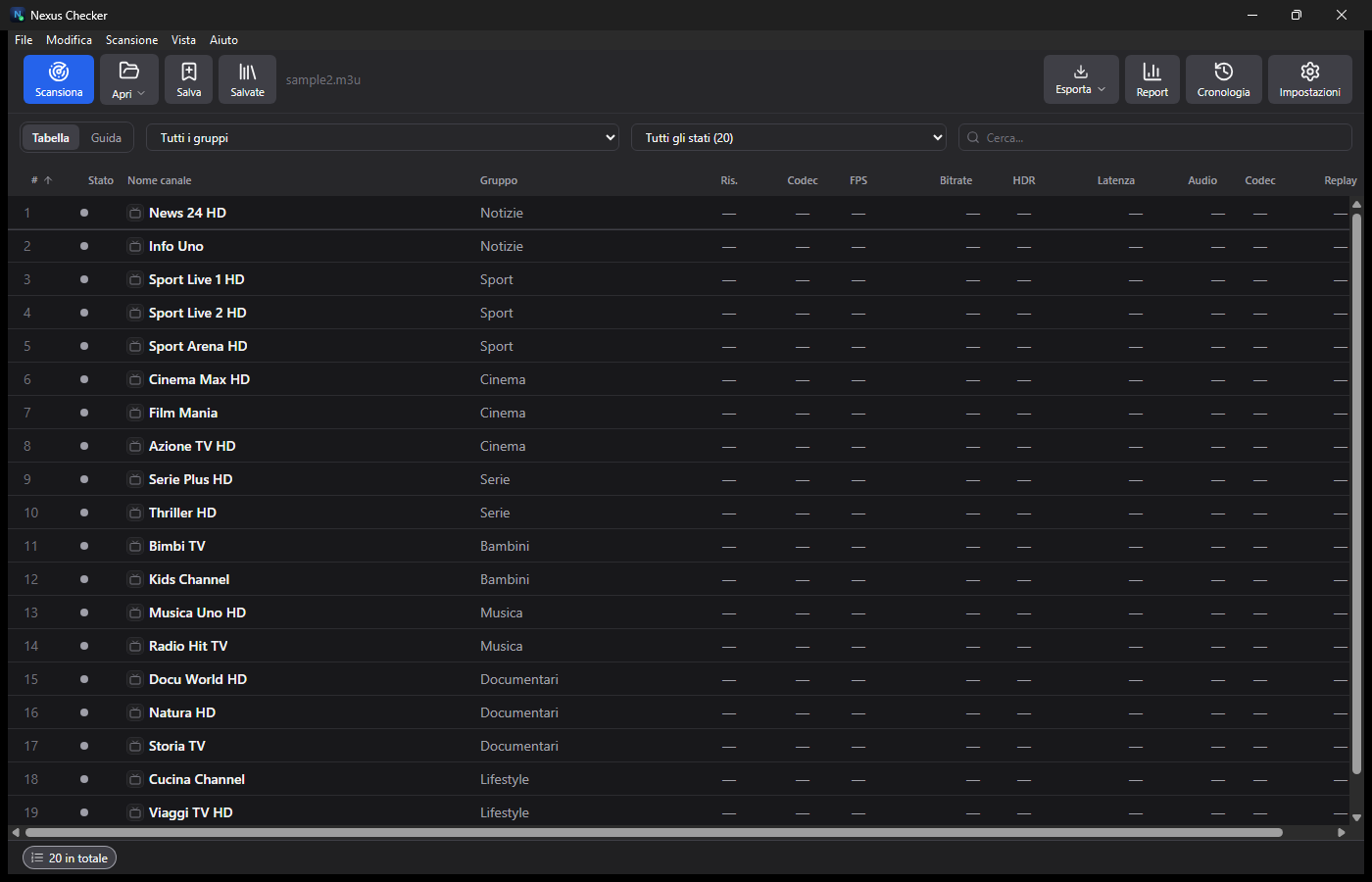
Nella schermata iniziale hai cinque pulsanti:
- Apri file — scegli un file
.m3u/.m3u8dal disco. - Apri cartella — importa tutti i file playlist dentro una cartella.
- Aggiungi URL — incolla il link diretto di una lista (M3U/M3U8).
- Aggiungi Xtream — inserisci host, utente e password di un server Xtream Codes.
- Aggiungi Dispatcharr — collega un server Dispatcharr.
Le liste usate di recente restano in Apri recenti, per riaprirle con un clic. I canali importati compaiono subito nella tabella.
Avviare la scansione
- Premi Scansiona (in alto a sinistra).
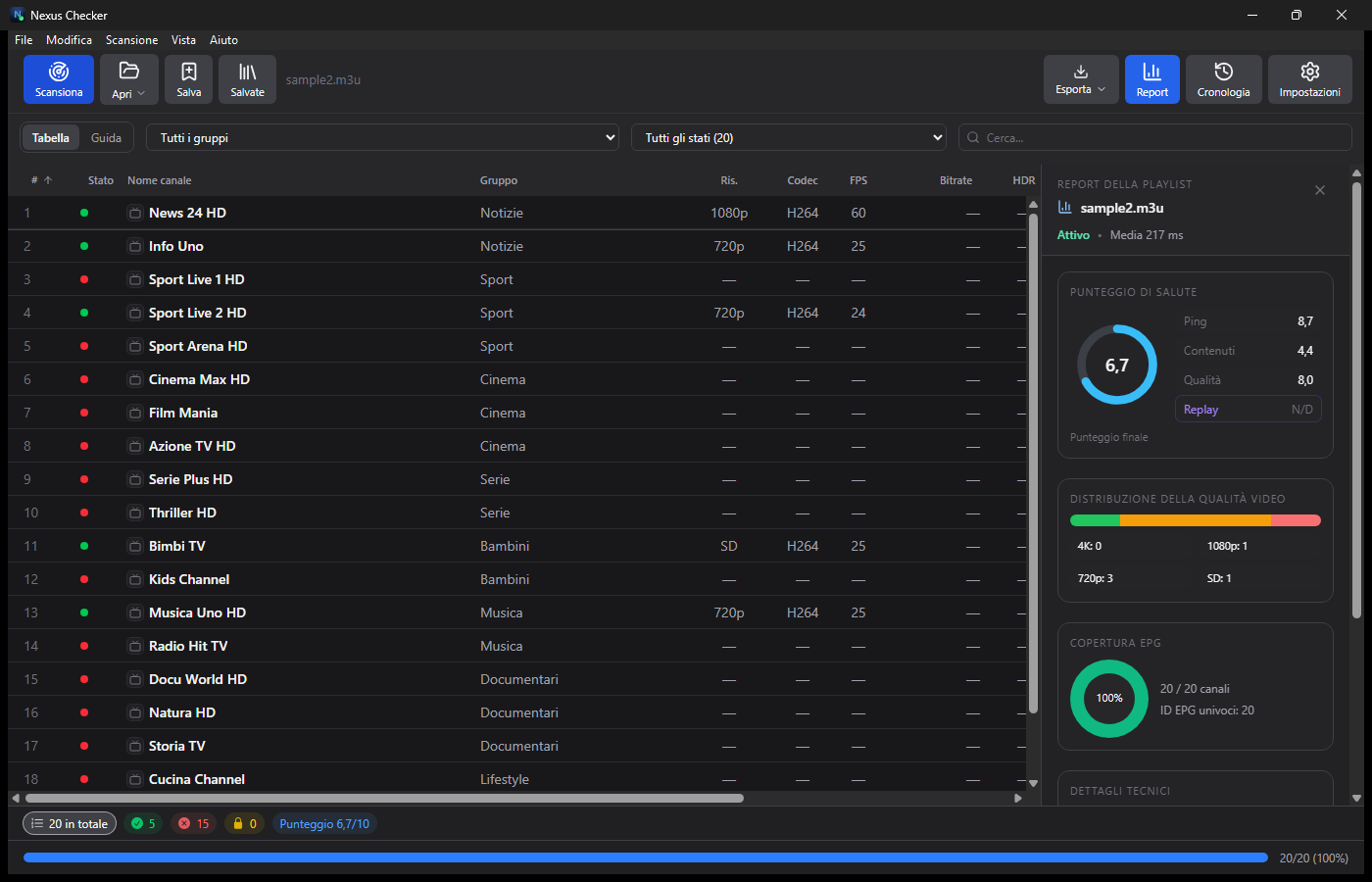
- Per ogni canale l'app assegna uno stato: vivo, morto, blocco geo (per Paese) o DRM. Puoi filtrare anche i canali solo-audio.
- Vengono letti risoluzione, codec, FPS, bitrate e latenza del flusso.
- Il test gira su più canali in parallelo (fino a 20; con Auto l'app sceglie da sola il valore giusto) e mostra l'avanzamento e il tempo stimato (ETA).
- Un secondo clic mette il test in pausa e lo riprende.
Leggere i risultati
La tabella Tabella mostra una riga per canale con le colonne: Stato (pallino verde/rosso), Nome canale, Gruppo, Ris., Codec, FPS, Bitrate, HDR e Latenza. In alto hai:
- il filtro per gruppo e per stato (vivi, morti, geo, DRM, solo-audio, duplicati, etichette errate);
- la ricerca per nome;
- la barra in basso con i totali (verdi/rossi) e il punteggio.
Il report della playlist
Premi Report per aprire il pannello con:
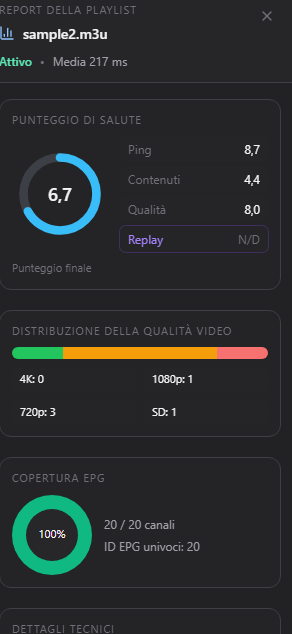
- Punteggio di salute da 0 a 10 (con i voti di Ping, Contenuti e Qualità);
- distribuzione della qualità video: quanti canali in 4K, 1080p, 720p e SD;
- copertura EPG: quanti canali hanno una guida TV associata.
Guida TV e player
Apri la scheda Guida per vedere il palinsesto dei canali. Puoi cercare un canale e, su ogni programma:
- Guarda — apre il canale nel player integrato (Play/Pausa, volume, schermo intero, Picture-in-Picture e Chromecast);
- Scarica — su un programma già passato, lo registra dal catch-up (se il canale lo supporta).
Anteprime e ffmpeg
Con ffmpeg (già incluso) l'app cattura un fotogramma dei canali vivi e legge anche i flussi .ts, RTSP e RTMP. Se vuoi un test più veloce puoi disattivare gli screenshot dalle impostazioni: il controllo resta su HTTP/HLS.
Esportare i risultati
Premi Esporta per salvare:
- CSV — tutti i risultati in tabella;
- M3U — la lista completa dei canali importati;
- Split — divide i canali in gruppi (tra cui una M3U dei soli canali vivi);
- log di scansione in JSON — il dettaglio tecnico della scansione.
Cronologia
Premi Cronologia: ogni test viene confrontato con il precedente e vedi i canali peggiorati o recuperati dall'ultima volta.
Impostazioni utili
Dal pulsante Impostazioni puoi regolare la concorrenza del test, attivare/disattivare gli screenshot, la lingua e altre opzioni. Se l'app va lenta su una lista enorme, prova a ridurre la concorrenza.
Rete: proxy, VPN e geoblocchi
In Impostazioni → Rete puoi configurare:
- Proxy di riproduzione: un proxy
socks5://ohttp://usato solo per riprodurre i canali (non per lo scan), utile contro blocchi ISP o regionali. - App VPN: imposta il percorso dell'app VPN. Se un canale risulta bloccato per regione (HTTP 403/451), il player mostra il Paese suggerito e il bottone Apri VPN; poi premi Riprova.
- File proxy: la lista proxy usata dallo scan per confermare i geoblocchi.
La VPN non aggira le credenziali e non aumenta il limite di connessioni del provider: per quello serve un altro account reale.
Più account e limiti di connessione
Molti provider limitano le connessioni simultanee (es. 1/1). Se un canale dà errore HTTP 401 con l'account attivo, Nexus lo spiega:
- Credenziali rifiutate: controlla utente, password o MAC.
- Linea occupata: un altro dispositivo sta usando l'account; l'app mostra le connessioni attive e attende uno slot libero.
Per continuare:
- Pool account Xtream: in Impostazioni → Rete aggiungi account reali dello stesso provider, uno per riga come
http://host:8080|utente|password. Se l'account corrente è pieno, l'app passa da sola a quello con uno slot libero. - Switch proattivo: prima di riprodurre, l'app controlla lo slot; se l'account è occupato e un altro dello stesso provider è libero, parte direttamente da quello (senza aspettare il 401).
- Testa pool: il bottone in Impostazioni mostra per ogni account auth, stato e slot (verde = libero, giallo = occupato, rosso = non valido).
- Decidi tu: l'interruttore Usa il pool automaticamente (Impostazioni → Rete) attiva/disattiva la commutazione. Se è off, l'app resta sempre sull'account che apri (es. la tua stringa URL/Xtream); se è on, passa da sola a un account libero.
- Pool Stalker: aggiungi portali/MAC reali, uno per riga come
http://portale/c/|00:1A:79:00:00:00. Al 401 l'app cerca lo stesso canale sull'altro portale/MAC e riproduce da lì.
Il badge in alto a sinistra mostra le connessioni (es. 1/1); il bottone Libera linea ferma la riproduzione dell'app e ricontrolla subito lo stato. Nel pannello canale (sezione Debug) vedi l'account attivo.
Nota: il pool Xtream funziona solo tra account dello stesso provider (stessi ID canale); provider diversi vanno usati come playlist separate.
Portali Stalker/MAC
Apri Open → Stalker, inserisci l'URL del portale e il MAC. Puoi salvare il portale tra le playlist salvate (il MAC viene cifrato a riposo) e riaprirlo con un click.
Debug e diagnosi
- Log live: menu Visualizza → Log (o scorciatoia): filtri per livello, ricerca, copia ed export.
- Diagnostica di riproduzione: nel pannello canale trovi motore, riconnessioni, errori upstream e buffer; puoi esportare il report JSON.
- Copia diagnostica: copia canale, URL, stato, codec, errore e connessioni, da incollare all'assistenza.
Lingue
Oltre a italiano e inglese sono disponibili serbo, croato e bosniaco (e altre lingue) in Impostazioni → Generale → Lingua. La modifica si applica dopo un riavvio.
Problemi comuni
Molti canali risultano "morti"
Spesso il flusso è offline, bloccato per Paese (geo) o protetto da DRM. Il test lo distingue: guarda la colonna Stato. Verifica anche che la lista sia aggiornata.
Il test è lento
Su liste molto lunghe è normale. Puoi ridurre la concorrenza, disattivare gli screenshot (ffmpeg) o testare prima un gruppo alla volta.
Un canale si apre ma non si vede
Alcuni flussi sono bloccati dal provider (IP/geo) o richiedono un player esterno. Prova a esportare la M3U e aprirla in un player che usi di solito.
Serve un abbonamento?
No. Nexus Checker è gratuito e analizza solo le liste che gli dai tu.
Prossimi passi
Nexus Checker è uno strumento di diagnostica: non fornisce né ospita contenuti. Usa solo liste e fonti di cui hai i diritti.
Nexus Checker guide
Updated guide — 2026 · version 2.8.7
This guide explains, step by step, how to use Nexus Checker: load a playlist, run a scan, read the results, export them and watch channels. No technical knowledge required.
Nexus Checker is a diagnostic tool: it analyses IPTV playlists you already have. It does not provide or host any content.
What you need
- Windows 10 or 11 (64-bit).
- An IPTV list: a
.m3u/.m3u8file, a folder, a URL, or an Xtream Codes or Dispatcharr server. - Nothing else: ffmpeg is already bundled in the installer.
Install
- Download the installer from the Nexus Checker page.
- Open it and follow the setup (it installs into your user folder, no admin rights needed).
- Launch Nexus Checker from the Start menu or the desktop shortcut.
Load a playlist
On the start screen you have five buttons:
- Open file — pick a
.m3u/.m3u8file from disk. - Open folder — import every playlist file inside a folder.
- Add URL — paste the direct link of a list (M3U/M3U8).
- Add Xtream — enter host, username and password of an Xtream Codes server.
- Add Dispatcharr — connect a Dispatcharr server.
Recently used lists stay under Recent, ready to reopen with one click. Imported channels appear in the table right away.
Run the scan
- Press Scan (top left).
- Each channel gets a status: alive, dead, geo block (by country) or DRM. You can also filter audio-only channels.
- The app reads resolution, codec, FPS, bitrate and latency from the stream.
- The test runs on several channels in parallel (up to 20; with Auto the app picks the right value) and shows progress and the estimated time (ETA).
- A second click pauses the test and resumes it.
Read the results
The Table view shows one row per channel with the columns: Status (green/red dot), Channel name, Group, Res., Codec, FPS, Bitrate, HDR and Latency. At the top you have:
- filters by group and by status (alive, dead, geo, DRM, audio-only, duplicates, mislabeled);
- the search by name;
- the bottom bar with the totals (green/red) and the score.
The playlist report
Press Report to open the panel with:
- a health score from 0 to 10 (with Ping, Content and Quality ratings);
- the video quality distribution: how many channels are 4K, 1080p, 720p and SD;
- the EPG coverage: how many channels have a TV guide attached.
TV guide and player
Open the Guide tab to see the channel schedule. You can search for a channel and, on each programme:
- Watch — opens the channel in the built-in player (Play/Pause, volume, fullscreen, Picture-in-Picture and Chromecast);
- Download — on a past programme, it records it from catch-up (if the channel supports it).
Thumbnails and ffmpeg
With ffmpeg (already bundled) the app captures a frame of live channels and also reads .ts, RTSP and RTMP streams. If you want a faster test you can turn screenshots off in the settings: the check stays on HTTP/HLS.
Export the results
Press Export to save:
- CSV — all results in a table;
- M3U — the full list of imported channels;
- Split — splits channels into groups (including an M3U of live channels only);
- scan log as JSON — the technical detail of the scan.
History
Press History: each test is compared with the previous one and you see channels that worsened or recovered since last time.
Useful settings
From the Settings button you can adjust the scan concurrency, enable/disable screenshots, the language and other options. If the app feels slow on a huge list, try lowering the concurrency.
Network: proxy, VPN and geo-blocks
In Settings → Network you can configure:
- Playback proxy: a
socks5://orhttp://proxy used only to play channels (not for scans), useful against ISP or region blocks. - VPN app: set the path of your VPN app. If a channel is region-blocked (HTTP 403/451), the player shows the suggested country and an Open VPN button; then press Retry.
- Proxy file: the proxy list used by scans to confirm geo-blocks.
A VPN does not bypass credentials and does not raise the provider's connection limit: for that you need another real account.
Multiple accounts and connection limits
Many providers limit simultaneous connections (e.g. 1/1). If a channel returns HTTP 401 while the account is active, Nexus explains it:
- Credentials rejected: check the username, password or MAC.
- Line busy: another device is using the account; the app shows the active connections and waits for a free slot.
To keep going:
- Xtream account pool: in Settings → Network add real accounts from the same provider, one per line as
http://host:8080|username|password. When the current account is full, the app switches on its own to one with a free slot. - Proactive switch: before playing, the app checks the slot; if the account is busy and another same-provider account is free, it starts directly from that one (no 401 wait).
- Test pool: the button in Settings shows each account's auth, status and slot (green = free, amber = busy, red = invalid).
- You decide: the Use the pool automatically switch (Settings → Network) enables/disables switching. When off, the app always stays on the account you opened (e.g. your URL/Xtream string); when on, it moves to a free account by itself.
- Stalker pool: add real portals/MACs, one per line as
http://portal/c/|00:1A:79:00:00:00. On a 401 the app finds the same channel on the other portal/MAC and plays from there.
The top-left badge shows the connections (e.g. 1/1); Free the line stops the app's playback and immediately re-reads the status. The channel panel (Debug) shows the active account.
Note: the Xtream pool only works between accounts from the same provider (same channel IDs); different providers should be used as separate playlists.
Stalker/MAC portals
Open Open → Stalker, enter the portal URL and MAC. You can save the portal in Saved playlists (the MAC is encrypted at rest) and reopen it in one click.
Debug and diagnostics
- Live log: menu View → Log (or shortcut): level filters, search, copy and export.
- Playback diagnostics: the channel panel shows engine, reconnects, upstream errors and buffer; you can export the JSON report.
- Copy diagnostics: copies channel, URL, status, codec, error and connections, ready to paste into support.
Languages
Besides Italian and English there are Serbian, Croatian and Bosnian (and other languages) in Settings → General → Language. The change applies after a restart.
Common issues
Many channels show as "dead"
Often the stream is offline, country-blocked (geo) or DRM-protected. The test tells them apart: check the Status column. Also make sure the list is up to date.
The scan is slow
On very long lists this is normal. You can lower the concurrency, turn off screenshots (ffmpeg) or test one group at a time first.
A channel opens but nothing plays
Some streams are blocked by the provider (IP/geo) or need an external player. Try exporting the M3U and opening it in a player you normally use.
Do I need a subscription?
No. Nexus Checker is free and only analyses the lists you give it.
Next steps
Nexus Checker is a diagnostic tool: it does not provide or host any content. Use only lists and sources you have the rights to.